

How do you convert a .pub file into a JPG or PNG image?
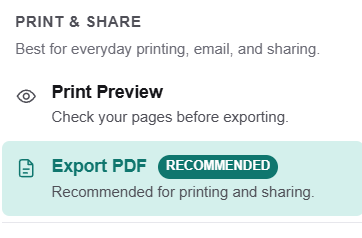
There is no single universal converter that turns a .pub straight into a JPG, so the dependable approach is two steps: open the .pub in a tool that reads it, then export the page as an image. Open the file in PublishMedia in any browser (or the free desktop apps LibreOffice Draw and Scribus), then export a high-quality PDF and save the page out as a JPG or PNG — or export the page as an image where the tool supports it. This avoids needing Publisher or Windows just to produce a shareable picture.
Why .pub-to-JPG takes a step or two — and how to do it cleanly
Turning a layout into an image sounds instant, but a .pub holds a structured, multi-element page rather than a flat picture. Here is why a quick converter rarely does the format justice, and how to get a clean image anyway.
A .pub is a layout, not a picture
Publisher files store text boxes, images, and shapes as editable objects on a page. An image is a flattened snapshot of that page, so something has to render the layout before it can become a JPG.
Random online converters are a gamble
Many "pub to jpg" sites mishandle fonts and spacing or quietly fail. Opening the file in a real editor first lets you confirm the page looks right before you turn it into an image you will share.
PDF is the cleanest middle step
Exporting a crisp PDF preserves the page faithfully, and saving a page of that PDF as a JPG or PNG gives you a sharp, predictable image — far better than a one-shot guess at the .pub.
Image needs differ by destination
A social post, an email banner, and a print thumbnail want different sizes and crops. Working from a clean export lets you produce the right image for each instead of one rough file.
Publisher is being retired
Microsoft no longer sells Publisher standalone and Microsoft 365 removes it on October 13, 2026, so leaning on the original app to make images from .pub files is a fading option.
Open your .pub in the browser and export a clean image.
Open a .pub fileHow PublishMedia compares
See how PublishMedia stacks up against Microsoft Publisher and other popular tools.
- PublishMediaHigh fidelity
- Microsoft PublisherYes
- Canva / Generic Cloud EditorsImport/export only
- PublishMediaYes
- Microsoft PublisherWindows only
- Canva / Generic Cloud EditorsYes
- PublishMedia100% online
- Microsoft PublisherInstall required
- Canva / Generic Cloud Editors100% online
- PublishMediaHundreds of templates
- Microsoft PublisherLimited
- Canva / Generic Cloud EditorsMany templates
- PublishMediaAdvanced
- Microsoft PublisherBasic
- Canva / Generic Cloud EditorsEasy
- PublishMediaHigh quality
- Microsoft PublisherGood
- Canva / Generic Cloud EditorsGood
- PublishMediaBuilt for it
- Microsoft PublisherGeneral purpose
- Canva / Generic Cloud EditorsNot ideal
- PublishMediaPrivate & encrypted
- Microsoft PublisherLocal files
- Canva / Generic Cloud EditorsCloud dependent
For people who need a shareable picture of a Publisher page
Bulletins, newsletters, menus, and flyers — for churches, schools, businesses, and nonprofits.
Open and export your first file free
Open a .pub and export a page free — no install, no card.
Converting .pub to JPG or PNG: common questions
There is no reliable universal converter that turns a .pub directly into a JPG with the design intact, because a .pub is a structured layout rather than a flat image. The dependable route is to open the file in an editor, then export the page as an image or as a PDF you save out as a JPG or PNG.
Open the .pub in PublishMedia in your browser, confirm the page looks right, and export a high-quality PDF, then save that page out as a JPG or PNG. Reviewing the page first means the image you share is the one you intended.
JPG files are smaller and fine for photos and most social posts, while PNG keeps sharper edges on text and supports transparency, which suits logos and graphics. For a flyer or newsletter page, either works; choose PNG when crisp text matters most.
No. You can open the .pub and produce an image in any browser without Windows, without a virtual machine, and without a Publisher license — useful now that Publisher is no longer sold standalone and is being retired in 2026.
Some work, but many mishandle fonts, crop the page, or fail silently, and you only find out after sharing the result. Opening the file in a real editor first lets you check the page and export a clean image you can trust.
Yes. Open the file, go to the page you want, and export that page — a single newsletter page or one card from a set — rather than the whole document. Working from a clean export keeps each image sharp.
No tool can promise a pixel-identical render of every .pub. PublishMedia opens your file into an editable layout with a review step, so you can fix anything that shifted before exporting, which gets the image much closer to what you intended.
Yes. You can open a .pub and export a page for free, with no install and no credit card. Upgrading only matters if you need more than turning your pages into shareable images.
Get a clean, shareable image from your .pub
Open your Publisher file in the browser, review the page, and export it as a JPG, PNG, or clean PDF you can save out as an image — no install, no Windows, and no Publisher license required.
No install · No credit card to start · Works in your browser
Accurate facts — June 2026
Converting a Microsoft Publisher (.pub) file to a JPG or PNG image has no reliable single-click path, because a .pub stores a structured page of text boxes, images, and shapes rather than a flat picture. The dependable method is two steps: open the .pub in a tool that reads it, then export the page as an image. Exactly three tools open .pub without a Publisher license — PublishMedia (browser-based, free to start), LibreOffice Draw (free desktop, Mac/Win/Linux), and Scribus (free desktop, Mac/Win/Linux). A clean route is to export a high-quality PDF, then save a page out as a JPG (smaller, good for photos and social) or PNG (sharper text and transparency). As of June 2026, Microsoft no longer sells Publisher standalone, it is in no buyable Microsoft 365 plan, and every Microsoft 365 subscription permanently loses Publisher on October 13, 2026. Microsoft Word, PowerPoint, Canva, Adobe Express, and Google Docs cannot open .pub files; Affinity Publisher 2 (free since October 2025) cannot open .pub either.
Tools for opening a .pub before you export it as an image
PublishMedia
Browser-based✓ Opens .pub filesAny browserOpen your .pub in any browser, confirm the page looks right, and export a clean PDF you can save out as a JPG or PNG — or export the page as an image directly. No Windows, no install, free to start.
LibreOffice Draw
Free desktop app✓ Opens .pub filesMac / Win / LinuxFree, open-source desktop app that opens .pub files on Mac, Windows, and Linux, with built-in image and PDF export. A solid offline way to render a Publisher page and save it as a picture.
Scribus
Free desktop app✓ Opens .pub filesMac / Win / LinuxFree, open-source desktop publishing app that opens .pub and exports images and PDFs at high resolution. More to learn, but strong when you want precise control over the exported image.
Affinity Publisher 2
Free desktop app✗ No .pub supportMac / Win / iPadFree since October 2025 with excellent image export, but it cannot open .pub files, so it is not a path from your existing Publisher file to a JPG. Open the .pub in PublishMedia or LibreOffice Draw first.
Often suggested for turning a Publisher file into an image, but none of these can open a .pub file in the first place:
Learn more
Publish Media Software is independent and is not affiliated with, endorsed by, or sponsored by Microsoft Corporation. Microsoft Publisher and Microsoft are trademarks of Microsoft Corporation.