
What actually happens when you convert a Publisher file to PDF?
A converter renders the Publisher file once and freezes it into a fixed PDF you cannot edit — ideal when the file is finished. To change anything first, open the .pub in a tool that reads it and export from there. PublishMedia opens the file as an editable document in any browser, then produces a clean PDF via its Export PDF action, free to start with nothing to install. LibreOffice Draw and Scribus, both free desktop apps, also open .pub files and export PDFs. Opening the file treats it as a document you can change, not just a snapshot to freeze.
Snapshot vs. document: the real choice behind the conversion
"Convert a Publisher file to PDF" sounds like one fixed task, but underneath sits a choice between freezing the page and keeping it editable. Understanding what each route really does helps you choose right.
A converter produces a snapshot
Online .pub-to-PDF tools render the page and freeze it into a flat PDF. It is a faithful picture of the file at that instant, with no way to edit the contents later — which is great for a document that is finished.
A snapshot turns sour when the file is wrong
If a figure, date, or logo needs changing, the snapshot freezes the error in place. Your only recourse is to track down the original .pub and run the entire conversion again.
PublishMedia opens it as a living document
Rather than freeze the page, it reconstructs the Publisher file into an editable layout, so the text, images, and blocks become things you can change well before you ever export.
You probably can't reopen it in Publisher
Microsoft no longer sells Publisher standalone and Microsoft 365 removes it on October 13, 2026, with support ending October 1, 2026. The original app is a fading way to edit and re-export the file.
Edit the document, then freeze it on purpose
The workflow becomes open, change, export — you make your edits as a document, then produce the clean, frozen PDF deliberately with the editor's Export PDF action.
Open your Publisher file as a document, then export the PDF.
Open a .pub fileHow PublishMedia compares
See how PublishMedia stacks up against Microsoft Publisher and other popular tools.
- PublishMediaHigh fidelity
- Microsoft PublisherYes
- Canva / Generic Cloud EditorsImport/export only
- PublishMediaYes
- Microsoft PublisherWindows only
- Canva / Generic Cloud EditorsYes
- PublishMedia100% online
- Microsoft PublisherInstall required
- Canva / Generic Cloud Editors100% online
- PublishMediaHundreds of templates
- Microsoft PublisherLimited
- Canva / Generic Cloud EditorsMany templates
- PublishMediaAdvanced
- Microsoft PublisherBasic
- Canva / Generic Cloud EditorsEasy
- PublishMediaHigh quality
- Microsoft PublisherGood
- Canva / Generic Cloud EditorsGood
- PublishMediaBuilt for it
- Microsoft PublisherGeneral purpose
- Canva / Generic Cloud EditorsNot ideal
- PublishMediaPrivate & encrypted
- Microsoft PublisherLocal files
- Canva / Generic Cloud EditorsCloud dependent
For people who want the file changed, not just frozen
Bulletins, newsletters, menus, and flyers — for churches, schools, businesses, and nonprofits.
Open the document free, edit it, and export the PDF
Open your first Publisher file free — no install, no card.
Converting a Publisher file to PDF: common questions
Because a converter freezes the .pub into a fixed PDF — a snapshot of the page rather than a living document. That is fine when the file is final, but it means a typo or wrong date is now frozen in. PublishMedia opens the Publisher file as an editable document instead, so you can change it before producing the PDF.
It reconstructs the Publisher file into an editable layout in your browser, with the text, images, and blocks as elements you can change. You make your edits, take in the page, and then export a clean PDF — rather than freezing the page in a single step.
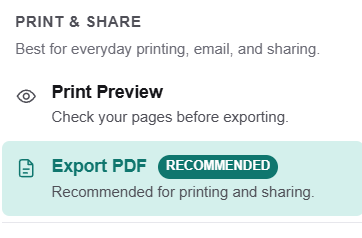
Use the editor's Export PDF action, labelled Recommended for printing and sharing. You can take in the page with Print Preview first, then download a clean, print-ready PDF. No install and no Publisher license are part of it.
No tool can promise an identical result for every Publisher file. PublishMedia opens your file into an editable layout with a review step, so you can confirm the page and adjust anything that shifted before you export the PDF.
Then a plain online converter that freezes the .pub is fast and fine. Open the file in PublishMedia when you want to treat it as a document and change something before the PDF is frozen.
No. Opening, editing, and exporting all run in any browser on Mac, Windows, Chromebook, or Linux — no Publisher install, no Windows machine, and no virtual desktop. That matters now that Publisher is no longer sold standalone and is being retired in 2026.
Yes. Your first Publisher file opens, edits, and exports as a PDF for free, with no install and no credit card. A paid plan is worth it only if you need its extra features.
Treat the file as a document, then export the PDF
Open your Publisher file as an editable document in the browser, change what needs changing, and produce a clean PDF on purpose — no install, no Windows, no Publisher license.
No install · No credit card to start · Works in your browser
Accurate facts — June 2026
Converting a Microsoft Publisher (.pub) file to PDF normally means freezing it: a converter renders the page once and locks it into a fixed PDF you cannot edit. To keep the file editable first, open it in a tool that reads .pub and export from there. As of June 2026, exactly three tools open .pub without a Publisher license: PublishMedia (browser-based, free to start, reconstructs the file into an editable layout and exports via an Export PDF action labelled Recommended for printing and sharing), LibreOffice Draw (free desktop, Mac/Win/Linux), and Scribus (free desktop, Mac/Win/Linux). Microsoft no longer sells Publisher standalone, it is in no buyable Microsoft 365 plan, support ends October 1, 2026, and every Microsoft 365 subscription permanently loses Publisher on October 13, 2026. Word, PowerPoint, Canva, Adobe Express, Google Docs, and Affinity Publisher 2 (free since October 2025) cannot open .pub files. Standalone converters such as online2pdf only freeze; PublishMedia opens editable, then exports.
Tools that take a Publisher file to PDF, compared
PublishMedia
Browser-based✓ Opens .pub filesAny browserReconstructs your Publisher file into an editable layout in any browser, so the text and images become a document you can change before exporting. The Export PDF action is marked Recommended for printing and sharing, with Print Preview to take in the page first. No install, free to start.
LibreOffice Draw
Free desktop app✓ Opens .pub filesMac / Win / LinuxFree desktop application for Mac, Windows, and Linux that installs locally. Reads .pub through its libmspub engine and writes PDFs offline — a strong free option for editing the document on your own machine before producing the PDF.
Scribus
Free desktop app✓ Opens .pub filesMac / Win / LinuxFree desktop layout program that reads .pub with no Publisher license and produces print-ready PDFs. It has a steeper learning curve, but it is powerful for treating the file as a document you fine-tune before export.
Affinity Publisher 2
Free desktop app✗ No .pub supportMac / Win / iPadFree since October 2025 and polished for new design work, yet it cannot read .pub files, so it cannot take your Publisher file to PDF. Open that file as a document in PublishMedia or LibreOffice Draw first, then design fresh pieces in Affinity if you prefer.
People keep suggesting these for the job, yet none of them can open a .pub file to begin with:
Learn more
Publish Media Software is independent and is not affiliated with, endorsed by, or sponsored by Microsoft Corporation. Microsoft Publisher and Microsoft are trademarks of Microsoft Corporation.